
SMS
“SMS” in the “Handbook” section is for sending sms to your customers. You can customize your message with the options on the screen during sms sending. Your customers can initiate a written and video conversation with the link in the message sent to their phone. You can read the article below for more information. ??
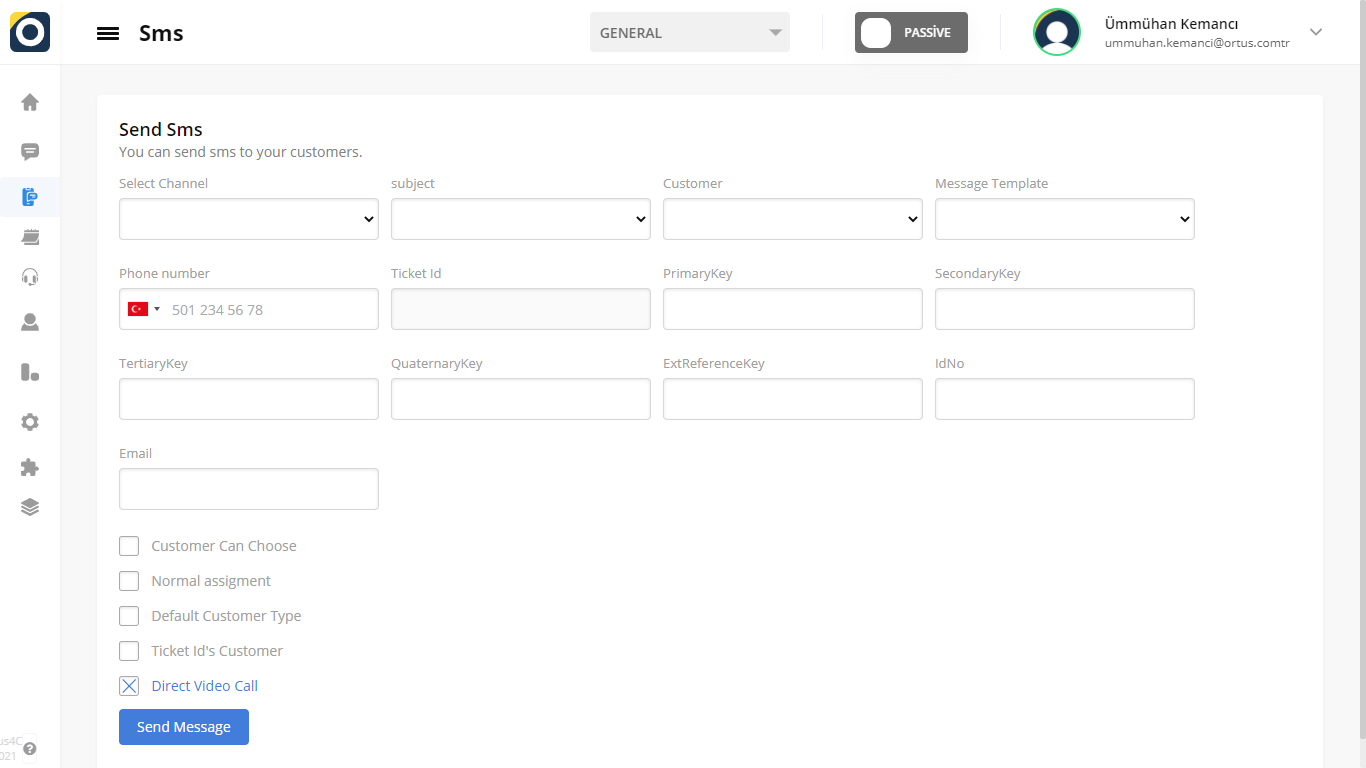
Select Channel
You can choose from which channel you want to send sms to your customer from the Select Channel section. You can also apply all these steps in the section that says subject and customer.
Subject
Subject is the short text that constitutes the content of the message (ex. password).
Customer
Customer determines the customer (ex. general or individual).
Message Template
As we have shown you before from the Message Template section, you can select the template related to the message template you will set from the settings section. The template you choose from here is the message template that will automatically go to your customer’s phone.
Phone Number
In order to send an SMS to your customer, you can enter the phone number of your customer in the Phone Number section.
Ticket ID
Ticket ID is the ticket number of the SMS sent.
You complete the step by entering contact information such as your customer’s name and e-mail in the Name and Mail section. Then when you click on the send message button, the sms will be sent.
You can also make any changes you want from the boxes under all contact information. Before sending the sms, you can make changes here and sms will be sent according to the changes you make.
Customer Can Choose
In the first button, the Customer Can Choose button, customers enter their own information. If you click this button and activate it, you don’t need to enter the contact information you will enter here. Customers enter their own information. So, you only have to command the message to be sent automatically.
Normal Assignment
If you activate the normal assignment button, customers who are normally assigned directly from the system are assigned to the operators differently this time. When you mark this button, customers are put in the pool and queued. so when it’s their turn and whichever operator is available for that moment, that operator talks to the customer.
Default Customer Type
This is where you can select your default customer type.
Direct Video Call
If you activate this button, the simultaneous video call will start when the sms is gone.
Primary Key, Secondary Key, Tertiary Key, Quaternary Key, Ext Reference Key
You can use these fields to get different information other than the information we have determined for the contact information of the customers. So you can make customizations as you wish.
ID No
The customer’s id number is entered here.
As you can see above, you can send sms to your customers by filling in the necessary information. In this way, your customers can use the link found in SMS when contacting you.
That’s it!
Still need help? Message Us